

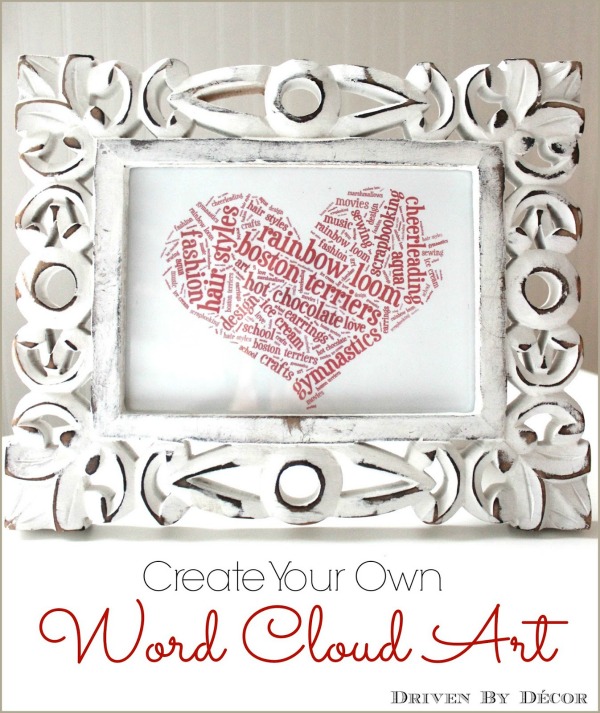
Have you ever heard of a word cloud? Not me. At least not until my youngest daughter told me that she worked on word clouds at school and found this website called Tagxedo where you can create your own personalized word cloud. She showed me the ropes and we’ve created word cloud after word cloud, including this one where we took some of the things my daughters loves most, made them into a word cloud heart, and framed it for her room:

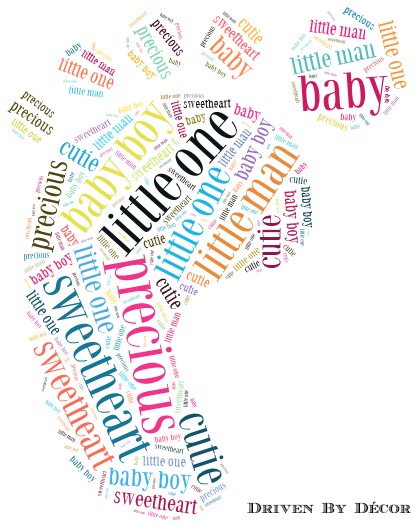
There are endless options for what you can create – like this little footprint for a baby boy’s room:
this fun high heel (made from the words of my “Best of Driven by Decor” blog post):

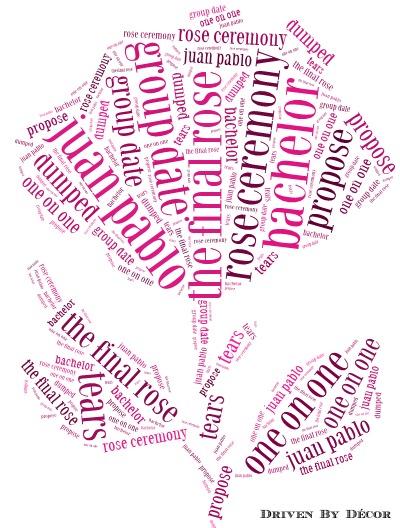
Or how about a “final rose” word cloud in honor of The Bachelor (um, not that I watch that kind of mindless trash TV or anything….):
Ready to create you own personalized word cloud art (for free!)? With my daughter’s help, I’ve created an easy tutorial to show you how:
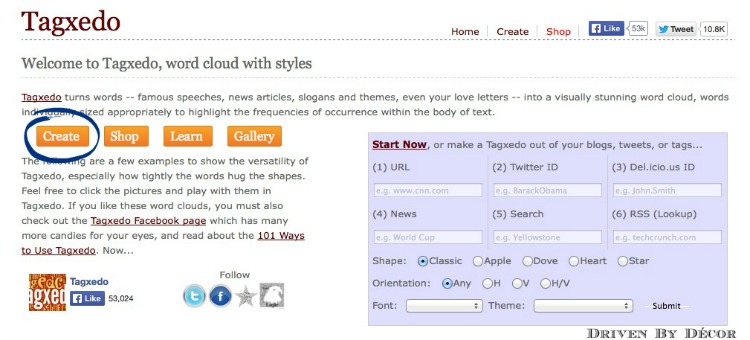
1. Start by going to Tagxedo’s website {here} – you must be on a desktop or laptop and be using a browser other than Google Chrome. Once on the Tagxedo website, click the “Create” button:
Want to save this post?
If you don’t have Silverlight installed on your computer, you may be prompted by a pop-up window to download and install it, as Tagxedo requires it to run. After installation you might need to reboot your computer.
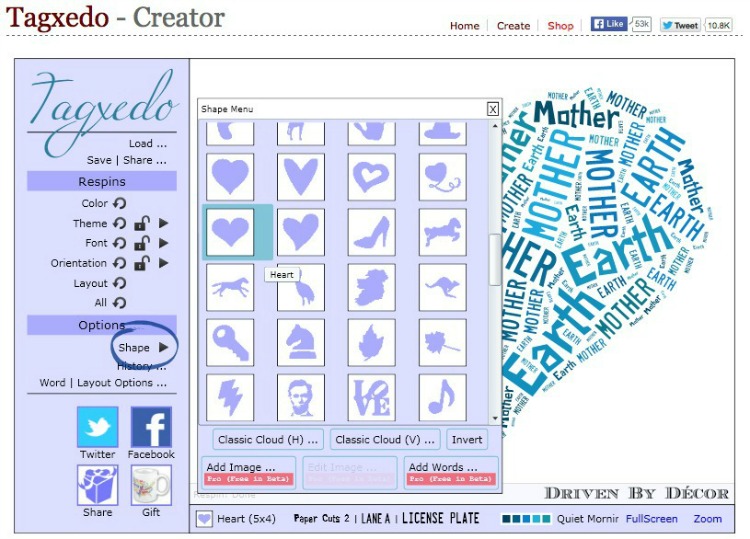
2. Next, choose a shape by clicking on the arrow to the right of “Shape” and selecting the one you want:
3. Next, click the arrow to the right of “Theme” and choose a color combination – it changes the colors of both the text and the background. You can also click on the circular arrow if you prefer to scroll through your color options one at a time.

4. Next, click on “Load” – this is where you’ll enter the words that you want in your word cloud. If you want to use all of the words on a particular webpage for your word cloud, type the URL of the page to the right of “Webpage”. Otherwise, you can enter the words that you want to use in the box to the right of “Enter Text”. Put a space between each of the words. If you have any two-word text items, use a tilde symbol between the words (for example, if you want to use “Boston terrier” in your word cloud, type “Boston~terrier”). When you are done, press “Submit”.

5. Click the arrow to the right of “Font” to change your font to the one you want to use:

6. If you love how it looks, you’re done! But if you want to see other layout options where the words are in different positions, click the circular arrow to the right of “Layout” as many times as needed until it’s what you’re looking for. You can also click the circular arrow to the right of “Color” if you want to switch around which words are which colors.

7. Another option is to change the orientation of the words by clicking the arrow to the right of “Orientation” and selecting the best option for you. I prefer the default orientation but the horizontal orientation has a nice look too:

At any time while making your word cloud, if you make a mistake or want to go back to a previous version, click “History” and select the thumbnail image that you want to revert to.
8. Congratulations, you’ve finished your word cloud! Now click on “Save” and save your image as a JPG or PNG file. Or you can click the Print tab to print it. Your word cloud will print out in about an 8 x 10 size. If you want a different size, save your image, paste it in a document where you can resize it, and print.

Thanks go out to my youngest daughter for sharing this how-to with me so that I could then share it with you. Hope you have as much fun with it as we have!



Lynn B. says
Is there a way to change font size. Some of the words are way too small for heat transfer vinyl?
Karen F. Snider says
This is January 2018. I have tried to use Tagxedo on my computer. But even though I have silverlight installed. It would not work in Internet explorer firefox. Do you know of any way else you can run this program besides silverlight
Kris Jarrett says
Sorry Karen – I’ve never tried it with Firefox so I’m not sure – I’d give it a go with another browser. Also if you haven’t already tried restarting your computer after installing Silverlight you might need to do that!
Lynn B. says
It works with internet explorer
Sue says
Thankyou for this. I’ve just done one but I’m getting a shadowing around the words when it’s printed. is there a way to get rid of it please?
Kris @ Driven by Décor says
Hi Sue, My daughter and I have done tons of these and we’ve never had a problem with shadowing around the words. Could the shadowing be part of the font that you selected? I would try changing the font and see if that solves your problem or checking your printer and making sure you are printing at “best” quality.
bigwhitehouseonthehill says
Love this idea and your great tutorial. I made one for my oldest for Valentine’s Day and am adding a link to tomorrow’s post sending readers your way. Such a fun project. Thanks!
Kris @ Driven by Décor says
So glad that you found a good use for it and thanks so much for linking up to my project!!
Tina Matteson says
Wow, thank you for this very helpful tutorial. I just spent a while making word cloud art for my kids and a friend! It’s so much fun.
Kris @ Driven by Décor says
It’s addictive, isn’t it?!
Suzanne J Dean says
Oh how I love this…thanks so much for sharing. My daughter is off to college this fall to study Marine Biology so I’m going to make a few prints for her dorm…marine life of course 🙂
hugz,
Suzanne
Kris @ Driven by Décor says
What an awesome idea! I spent a summer studying marine biology in college – loved it!
Laurel Stephens says
I love this project. Thank you so much for sharing your tutorial. I’m excited to try it myself.